

Activities & Follow-ups
The Complete Guide to Activities and Comments in Trivvo
1. Overview
Trivvo brings together follow-up work and communication related to system records in one place. Within a record, you can add comments, direct work to an employee, schedule follow-ups, send messages when the relevant channels are enabled, attach files, and review the activity history and work log. The Activities icon at the top of the system provides quick access to activities assigned to you and their related records, while the record history preserves a log of actions and changes.
The Activities tab is available in system records and some settings screens, including quotations, sales orders, invoices, purchases, and tickets.
2. Activities Tab vs. Activities Icon
• Activities tab within a record: Displays and documents comments, directions, appointments, correspondence, attachments, activity history, and work logs associated with that record.
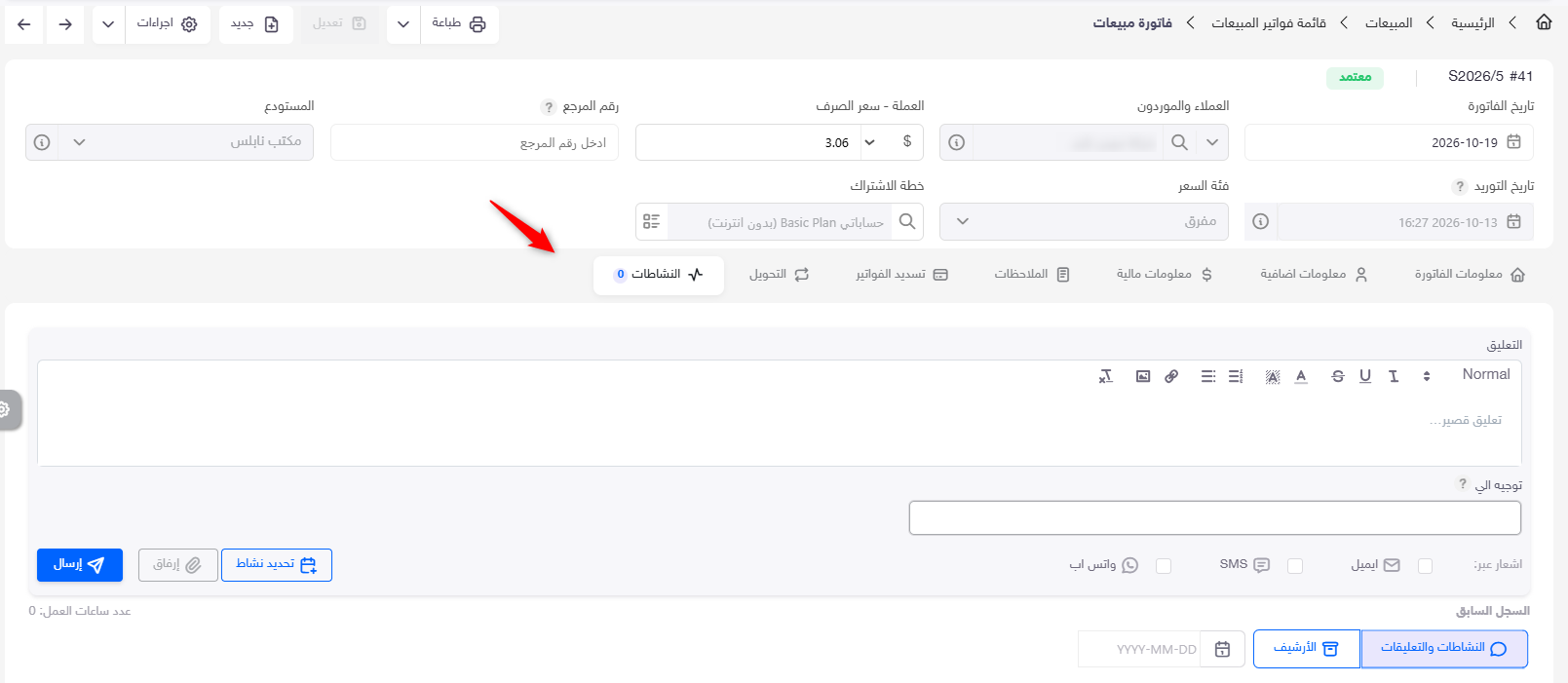
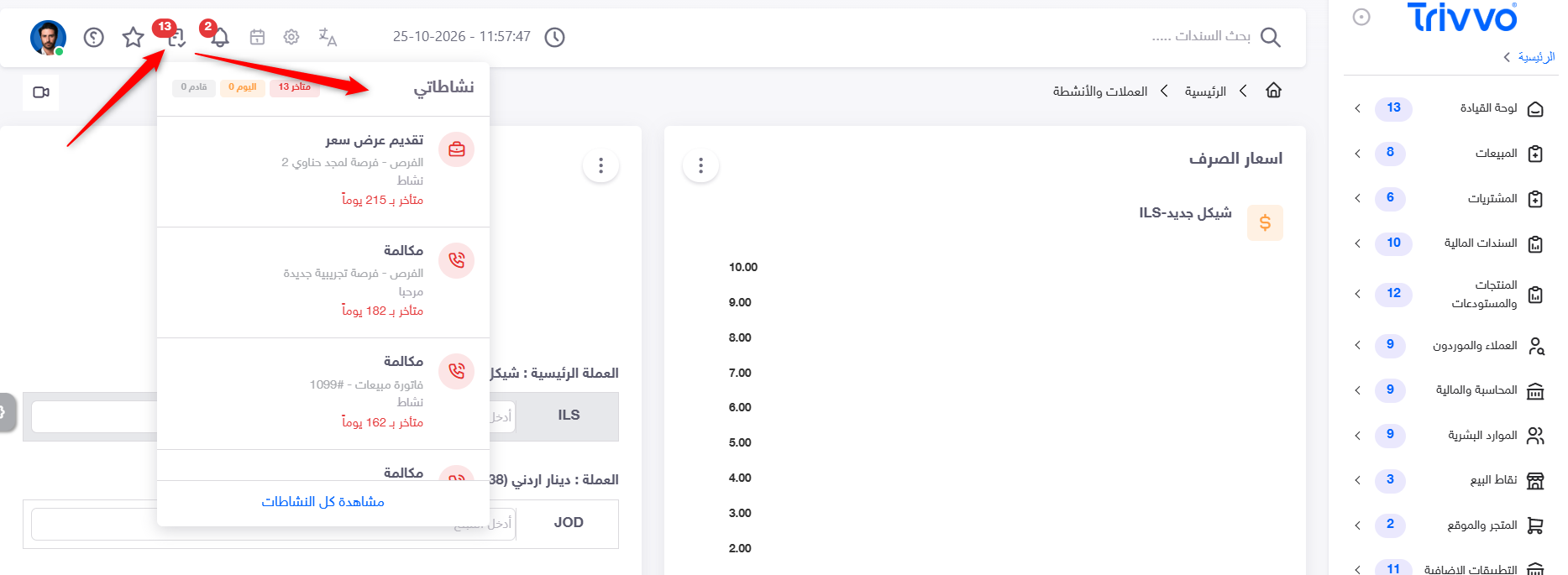
• Activities icon in the top bar: Provides quick access to activities assigned to the user, upcoming follow-ups, and the original related record.
3. Using the Activities Tab Within a Record
3.1 Comments and Notes
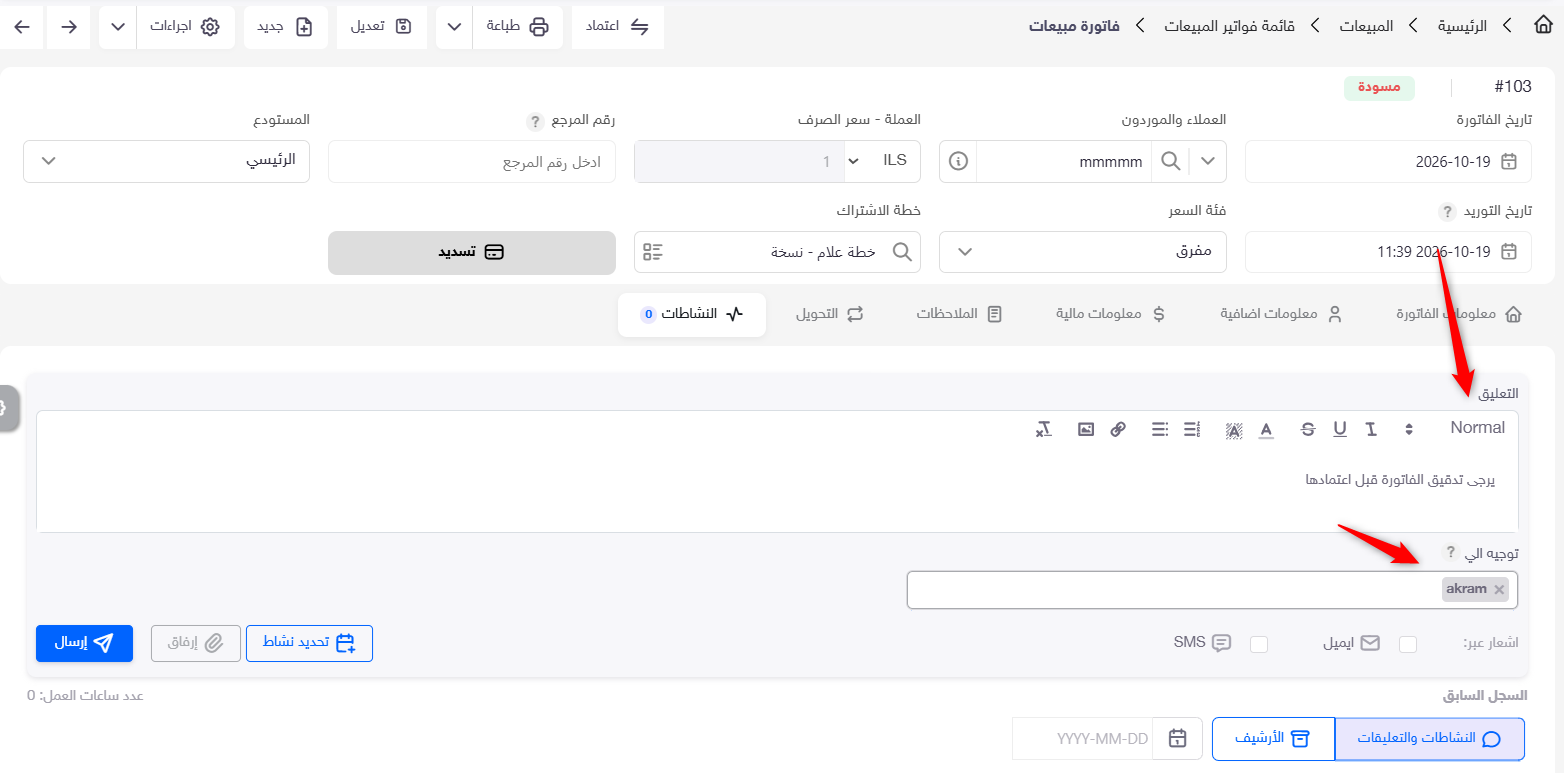
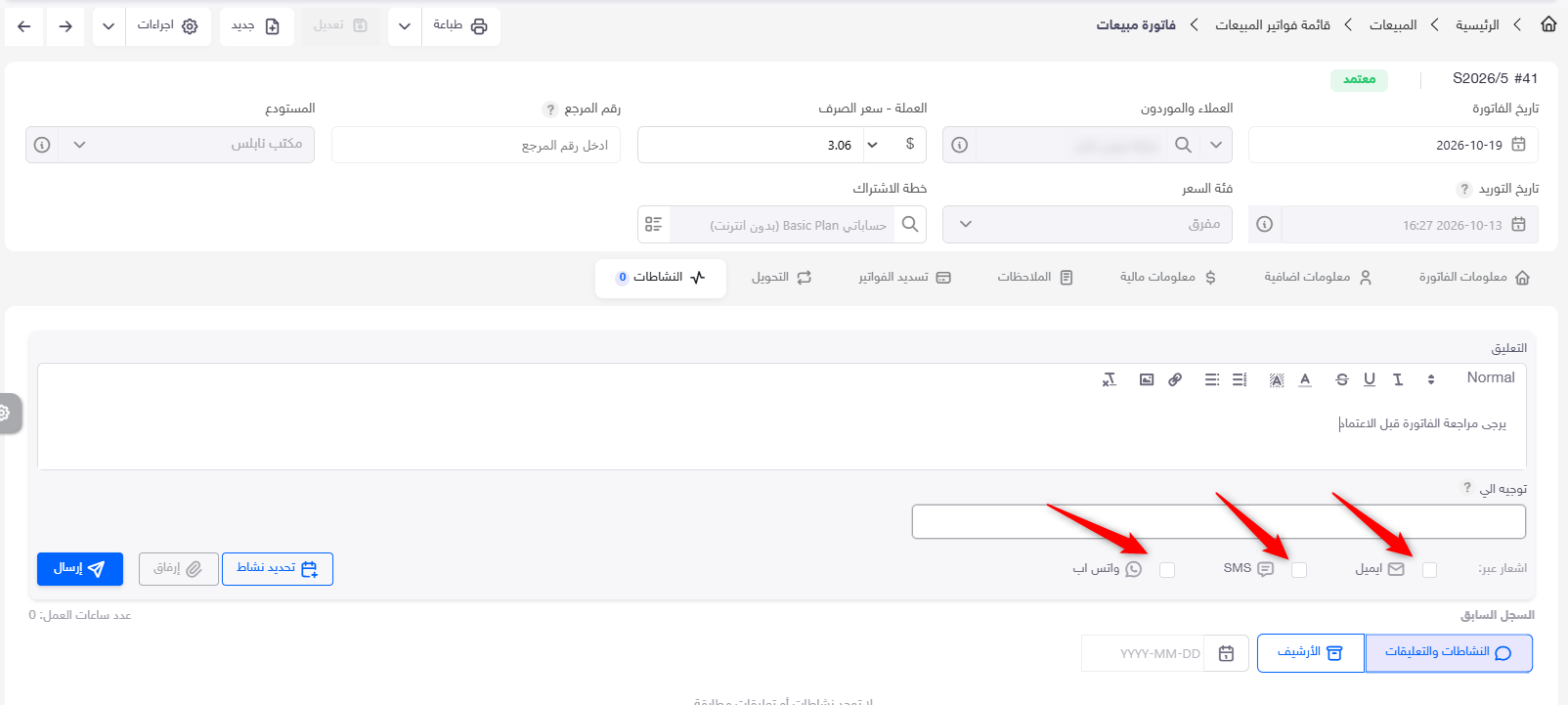
Authorized users can add internal notes or comments, such as the reason for reviewing a record, a summary of a customer call, or management instructions. Comments help preserve the follow-up context; they do not, by themselves, send a message to the customer.
3.2 Directing a Record
A record can be directed to another employee for review, completion of missing information, or further action, subject to permissions and the applicable workflow, as illustrated above. Directing a record does not necessarily change its assigned owner; responsibility is governed by the record settings and the applicable assignment rules.
3.3 Scheduling an Appointment or Follow-up Activity
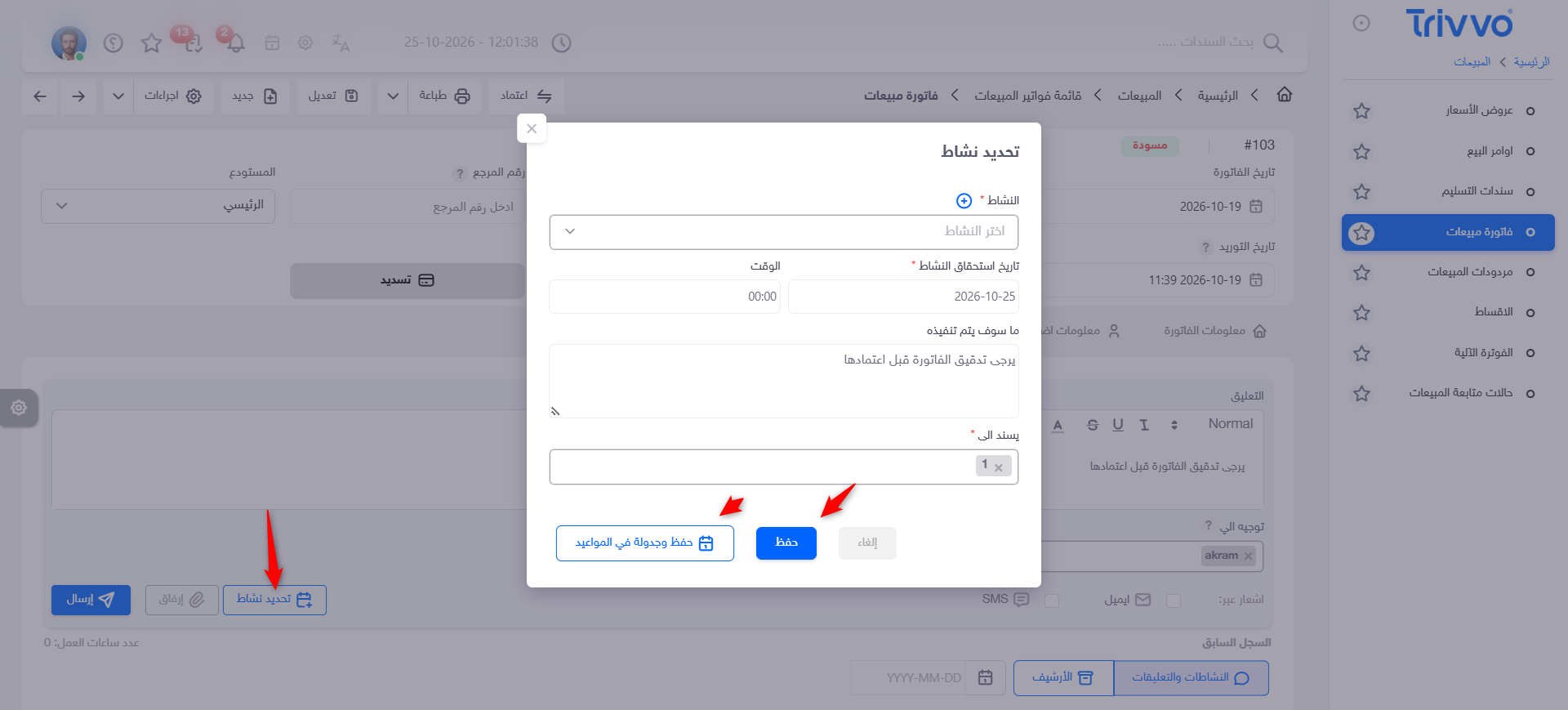
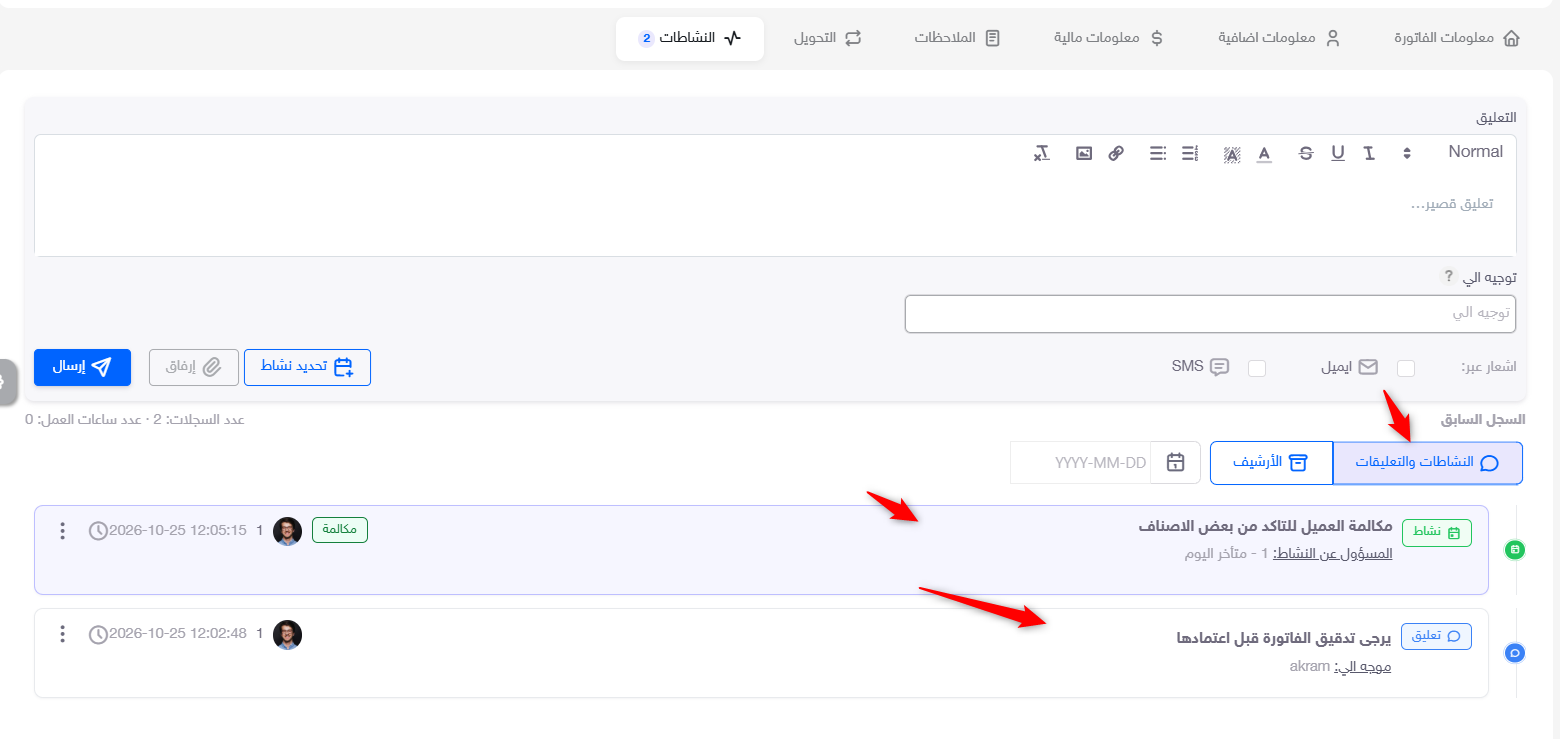
You can create an activity or appointment linked to a record to follow up on a phone call, meeting, payment collection, delivery, or quotation before its expiry date. The activity is assigned to the relevant employee according to permissions and appears in that employee’s activities for follow-up.
3.4 Correspondence
When the required integrations and settings are enabled, the tab can be used to send an email, SMS, or WhatsApp message linked to the record. Sent messages and replies supported by the system integration are saved in the activity history.
3.5 Attachments
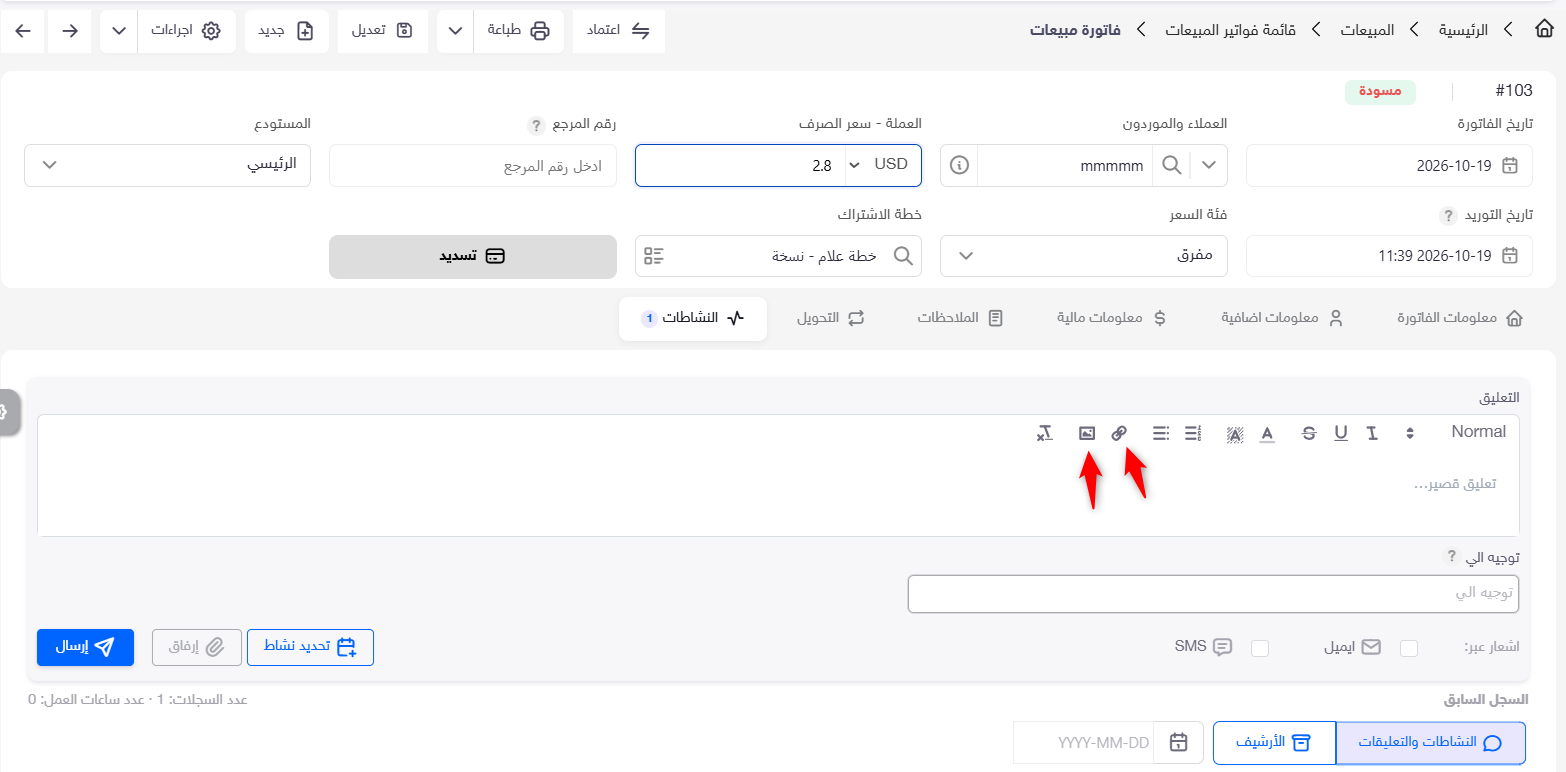
Record attachments, including PDFs, proposals, supporting documents, images, and correspondence, can be retained through the tab or the associated attachment feature, depending on the screen design.
3.6 Activity History and Replies
The activity history shows a chronological sequence of record-related events, such as comments, directions, appointments, messages, replies, and certain actions, depending on system settings. This helps users see what happened, who performed the action, and when.
3.7 Work Log
The work log records work actually performed on a record, including details such as the employee, type of work, date and time, duration or hours worked, and execution notes. It helps measure the effort spent on a customer or operation.
Key distinction: Activity history answers “What happened on the record?” while the work log answers “What work was performed, and how long did it take?”
4. Activities Icon in the Top Bar
4.1 Icon Location and Quick List
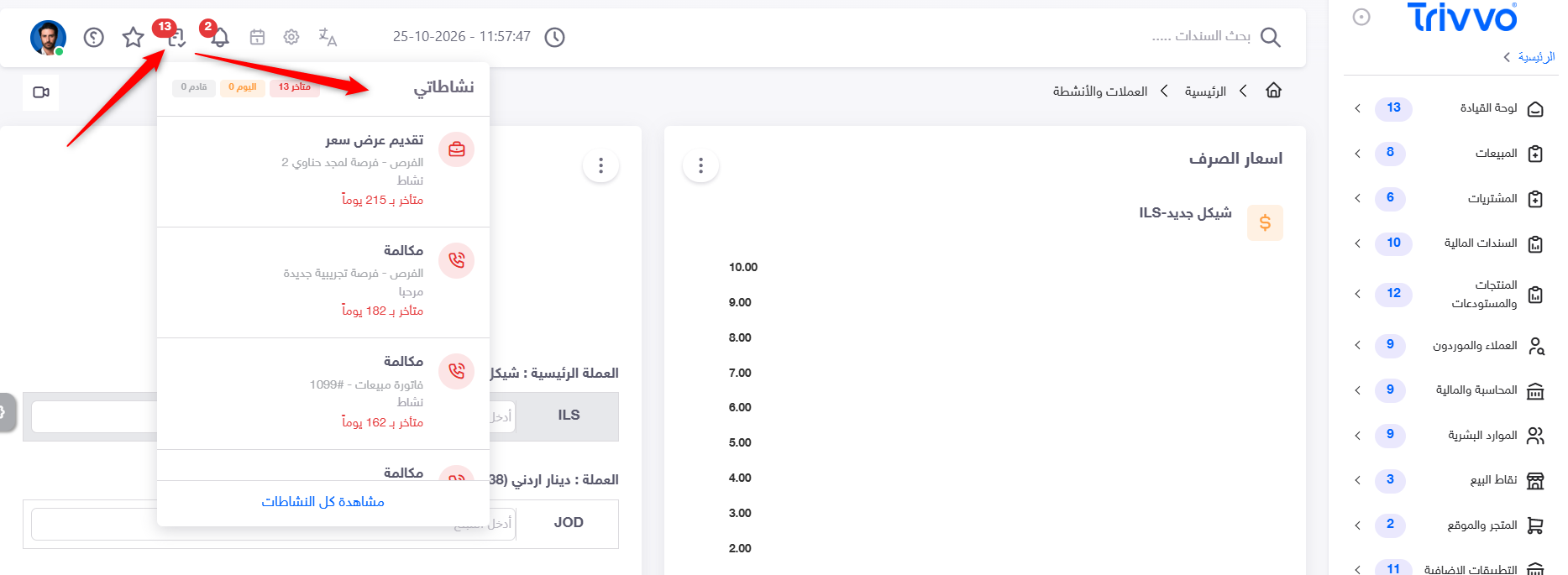
The Activities icon appears in the top bar next to the bell-shaped Notifications icon. Clicking it opens a short list, similar to the notifications list, containing a limited number of activities assigned to the user.
Activities are ordered by their due dates, with the nearest deadlines shown first. A “More” option at the bottom opens the full list.
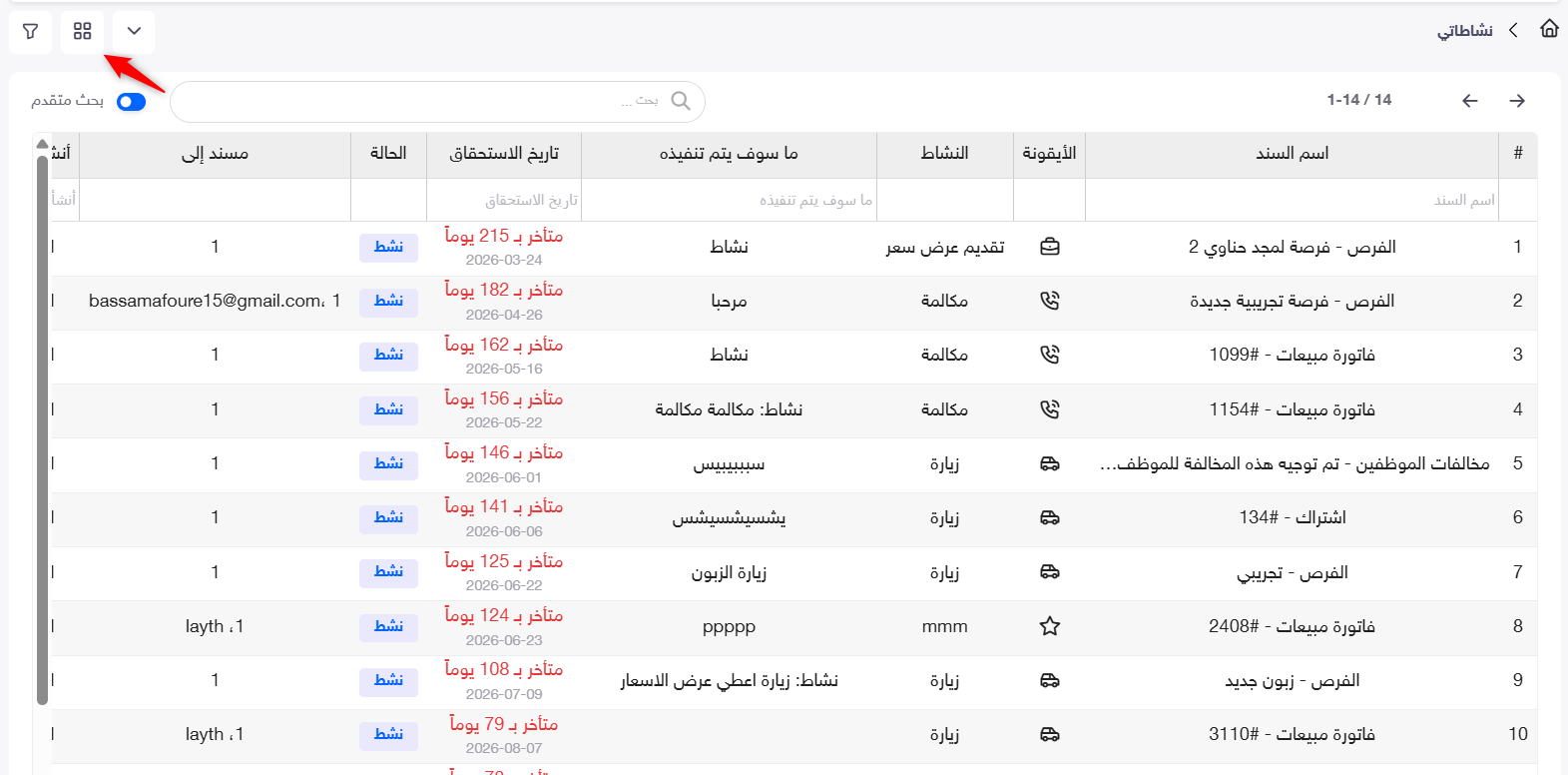
4.2 All Activities Page
Clicking “More” opens a page containing all activities assigned to the user, including completed activities. You can search for a specific activity and use filters to find the records you need.
Available actions next to an activity include “Complete,” “Cancel,” and “Postpone,” along with other options depending on the type of activity, the user’s permissions, and system settings.
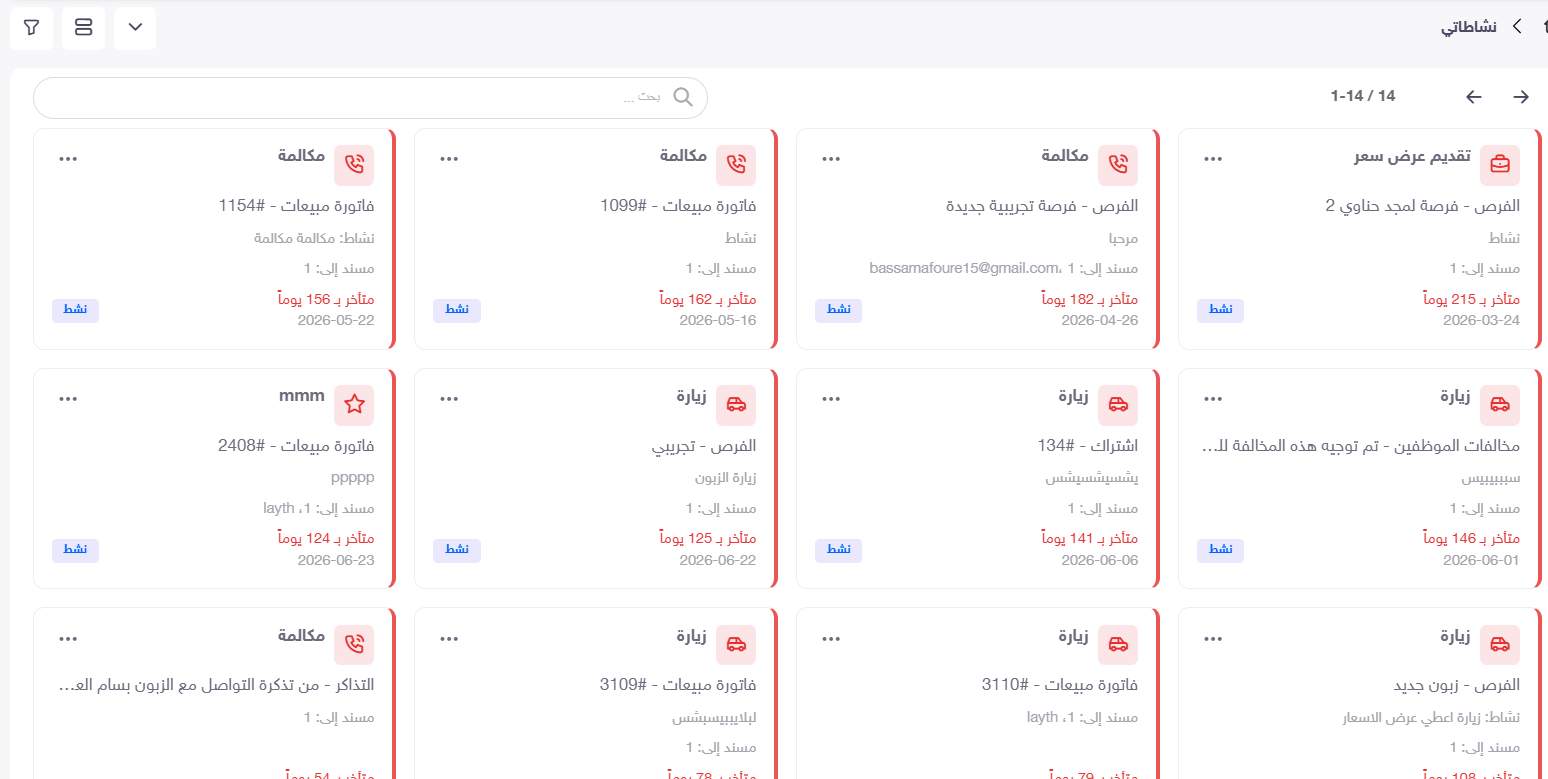
4.3 Card View
You can switch to a card (Kanban) view, where each activity is displayed on a separate card. This view shows cards only; it does not include workflow stages or stage-based columns.
4.4 Opening the Related Record
Clicking an activity opens the record from which it originated or to which it is linked, allowing you to review the details and continue follow-up in context.
5. Understanding Activity Actions and Record Statuses
Completing, canceling, or postponing an activity affects the activity itself; it does not automatically approve, cancel, or convert the related record. Likewise, adding a comment, scheduling an appointment, or sending a message does not change the record’s formal status. Statuses such as “Draft,” “Approved,” “Cancelled,” and “Converted” are managed through the designated record actions and applicable permissions.
A record may also have a commercial follow-up status, such as “In Negotiation.” This describes the current follow-up stage, while activities document the communication and actions that have taken place.
6. Permissions
A user’s available actions depend on their permissions and system settings, including viewing activities, adding comments, directing records, creating appointments, sending messages, attaching files, and viewing logs. The Activities icon does not grant any additional permissions on its own. Access to records and their contents remains governed by the applicable access rules.
7. Practical Example: Following Up on a Quotation
1. A sales employee opens a quotation and adds an internal comment documenting the review.
2. The employee sends the quotation to the customer by email or WhatsApp, if the channel is enabled.
3. The employee creates a follow-up activity, specifying the contact date and the assigned employee.
4. As the due date approaches, the activity appears in the top-bar list according to its due date.
5. The assigned employee opens the activity to access the quotation and review the communication history.
6. The employee records the outcome of the interaction and completes or postpones the activity as needed.
7. If the commercial stage changes, the follow-up status or record status is updated using its designated action—not simply by closing the activity.
8. Best Practices
• Write a clear, concise description for each activity, and assign the appropriate person and due date.
• Document important conversations in the record instead of relying solely on unrecorded external communication.
• Use attachments to retain relevant supporting documents.
• Review the activity history before approving, canceling, or converting a record.
• Record actual work hours in the work log when your organization needs to measure effort.
• Review the All Activities page regularly, using filters to find completed or open activities.
9. Frequently Asked Questions
Are completed activities displayed?
Yes. They appear on the All Activities page and can be found using search and filters.
Does the card view include a stage-based workflow?
No. The specified view displays cards only, without stages.
Does clicking an activity only open its details?
As described for this feature, clicking an activity opens its related record.
Is an internal comment sent to the customer?
No. An internal comment is not a customer message. Messages sent through communication channels are delivered according to the enabled channel and its settings.
Does completing an activity cancel its related record?
No. Activity actions are independent of the formal status of the related record.
Do all users have the same permissions?
No. Viewing and action permissions depend on the user’s access rights and system settings.